

- Check the logs
- Try the latest pre-release
- Download an older version
- Resolve keyboard shortcut issues
- MCP Server connection issues
- Check FAQs for common issues
Check the logs
To solve many problems, the first step is reading the logs to find the relevant error message. To do this, follow these steps:VS Code
Console logs
In order to view debug logs, which contain extra information, click the
dropdown at the top that says “Default levels” and select “Verbose”.
cmd+shift+Pfor MacOS orctrlshift+Pfor Windows
- Search for and then select “Developer: Toggle Developer Tools”
- This will open the Chrome DevTools window
- Select the
Consoletab - Read the console logs
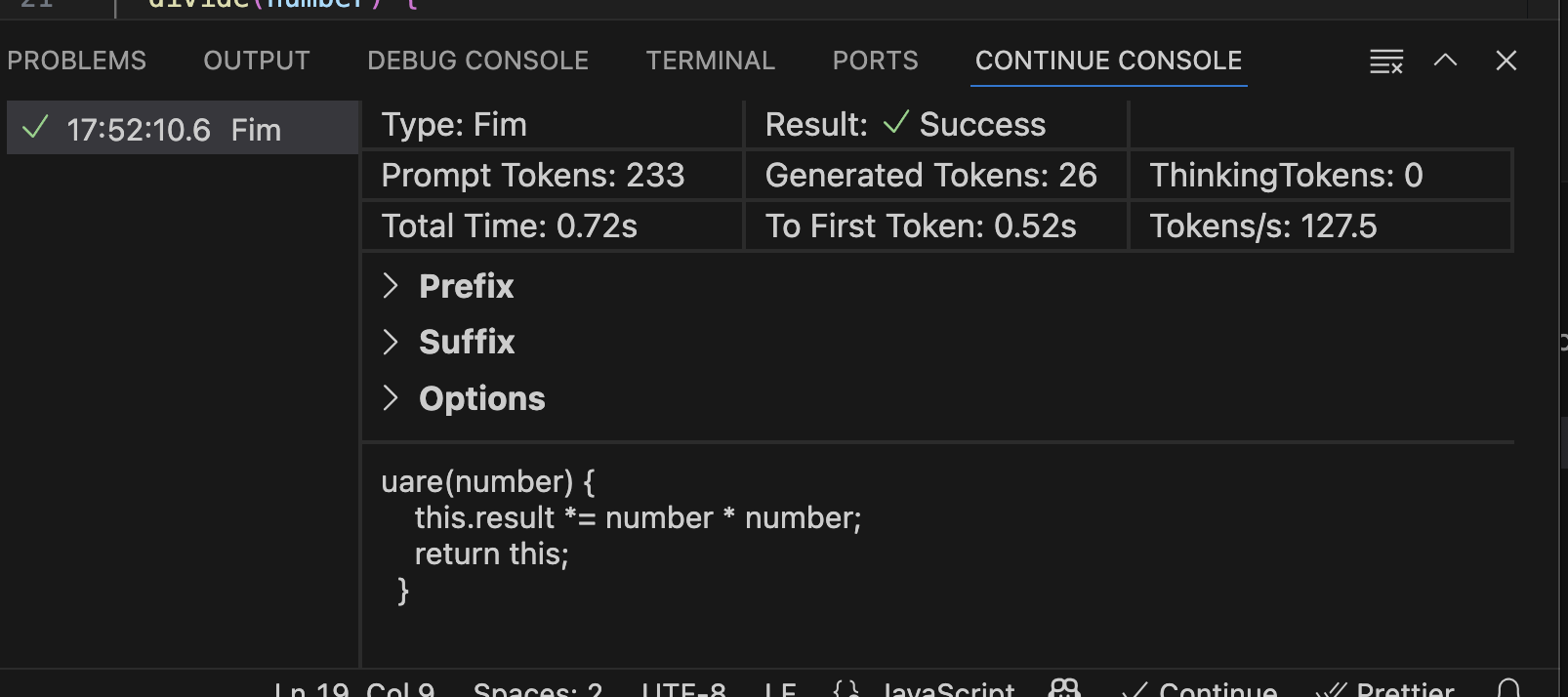
Prompt Logs (Continue Console)
To view prompt logs/analytics, you can enable the Continue Console.- Open VS Code settings (
cmd/ctrl+,) - Search for the setting “Continue: Enable Console” and enable it
- Reload the window
- Open the Continue Console by using the command palette (
cmd/ctrl+shift+P) and searching for “Continue: Focus on Continue Console View”
JetBrains
Open~/.continue/logs/core.log to view the logs for the Continue plugin. The most recent logs are found at the bottom of the file.
Some JetBrains-related logs may also be found by clicking “Help” > “Show Log in Explorer/Finder”.
Download the latest pre-release
VS Code
We are constantly making fixes and improvements to Continue, but the latest changes remain in a “pre-release” version for roughly a week so that we can test their stability. If you are experiencing issues, you can try the pre-release by going to the Continue extension page in VS Code and selecting “Switch to Pre-Release” as shown below.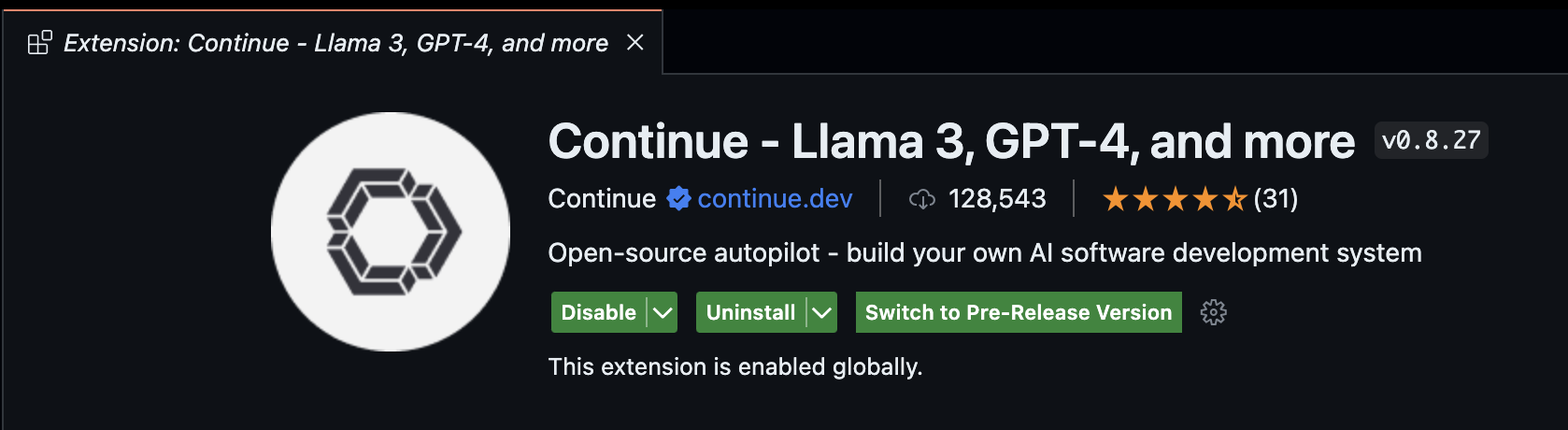
JetBrains
On JetBrains, the “pre-release” happens through their Early Access Program (EAP) channel. To download the latest EAP version, enable the EAP channel:- Open JetBrains settings (
cmd/ctrl+,) and go to “Plugins” - Click the gear icon at the top
- Select “Manage Plugin Repositories…”
- Add “https://plugins.jetbrains.com/plugins/eap/list” to the list
- You’ll now always be able to download the latest EAP version from the marketplace
Download an Older Version
If you’ve tried everything, reported an error, know that a previous version was working for you, and are waiting to hear back, you can try downloading an older version of the extension. For VS Code, All versions are hosted on the Open VSX Registry here. Once you’ve downloaded the extension, which will be a .vsix file, you can install it manually by following the instructions here. You can find older versions of the JetBrains extension on their marketplace, which will walk you through installing from disk.Keyboard shortcuts not resolving
If your keyboard shortcuts are not resolving, you may have other commands that are taking precedence over the Continue shortcuts. You can see if this is the case, and change your shortcut mappings, in the configuration of your IDE.MCP Server connection issues
Ollama model errors with MCP tool calling
Certain Ollama models may encounter errors during MCP tool calling operations, particularly after tool execution when the model processes tool results.Mistral/Ministral: 'Unexpected role system after role tool'
Mistral/Ministral: 'Unexpected role system after role tool'
Error message:Cause: Mistral family models don’t accept system messages appearing after tool messages in the conversation.Solution: This issue is automatically handled by Continue’s message normalization (added in v1.1.x). If you’re still experiencing this error:
- Ensure you’re using the latest version of Continue
- The normalization automatically reorders system messages before tool interactions
- No configuration changes are required
Gemma models: 'Invalid tool_calls: unknown variant index'
Gemma models: 'Invalid tool_calls: unknown variant index'
Error message:Cause: Gemma models don’t recognize the ‘index’ field in tool_calls structure.Solution: This issue is automatically handled by Continue’s message normalization (added in v1.1.x). If you’re still experiencing this error:
- Ensure you’re using the latest version of Continue
- The normalization automatically removes the ‘index’ field from tool calls
- No configuration changes are required
”spawn ENAMETOOLONG” error on macOS
If you’re seeing an error likeFailed to connect to "<MCP Server Name>" with Error: spawn ENAMETOOLONG when using MCP servers on macOS, this is due to the environment being too large when spawning the MCP process.
Workaround: Use the full path to the command instead of relying on PATH resolution:
- For
npx: runwhich npx - For
docker: runwhich docker - For
uv/uvx: runwhich uvorwhich uvx